WYSIWYG Editor
How WYSIWYG Works
Section titled “How WYSIWYG Works”WYSIWYG (“What You See Is What You Get”) editors provide a visual interface (GUI) where you can directly manipulate the layout of a document, such as changing font sizes, colors, or adding images, and see the results immediately. The software translates these visual actions into the underlying code (like HTML/CSS) automatically.
30,000 Foot View
Section titled “30,000 Foot View”Once the Content Page Block option is selected, you’ll be met with a collection of tools you can use to start developing your web content.

Closer Look
Section titled “Closer Look”Take a look at what each tool is capable of doing in customizing your web content needs.

Reverses the most recent edit or formatting change made to the content.

Reapplies the last action that was previously reversed by the Undo command.

Applies a heavier weight to the selected text to make it stand out.
Italic
Section titled “Italic”
Slants the selected text to provide emphasis or indicate specific types of titles.
Align left
Section titled “Align left”
Positions the selected text or paragraph against the left margin of the editor.
Align center
Section titled “Align center”
Centers the selected text or paragraph horizontally between the left and right margins.
Align right
Section titled “Align right”
Positions the selected text or paragraph against the right margin of the editor.
Bullet list
Section titled “Bullet list”
Formats the selected paragraphs into a clean, indented list using bullet points.
Numbered list
Section titled “Numbered list”
Organizes the selected paragraphs into a sequential list using ascending numbers.
Decrease Indent
Section titled “Decrease Indent”
Moves the paragraph closer to the left margin by reducing the indentation level.
Increase Indent
Section titled “Increase Indent”
Pushes the paragraph further from the left margin by increasing the indentation level.
Text Color
Section titled “Text Color”
Opens a palette to change the color of the selected text.
Insert/edit link
Section titled “Insert/edit link”
Allows you to highlight text and turn it into a clickable hyperlink or modify an existing one.
Source code
Section titled “Source code”
Displays or allows editing of the HTML source code.
Clear formatting
Section titled “Clear formatting”
Strips all applied styles, such as bold or color, from the selected text to return it to the default paragraph style.
Font sizes
Section titled “Font sizes”
Adjusts the numerical size of the selected text.
| From Points (Pt) | To Pixels (px) |
|---|---|
| 8pt | 10.67px |
| 10pt | 13.3px |
| 12pt | 16px |
| 14pt | 18.67px |
| 18pt | 24px |
| 24pt | 32px |
| 36pt | 48px |
Formats
Section titled “Formats”
Allows you to apply structural tags like Headings (H1, H2, etc.) or standard body text.

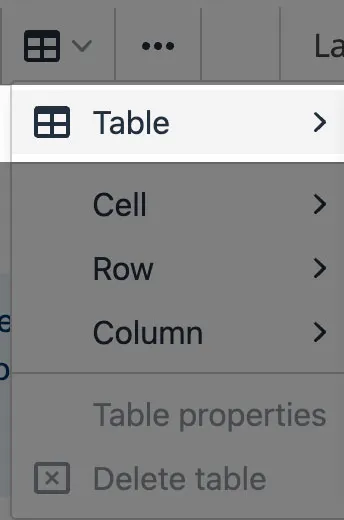
Table - Opens a grid selector to define the number of rows and columns for a new table insertion.
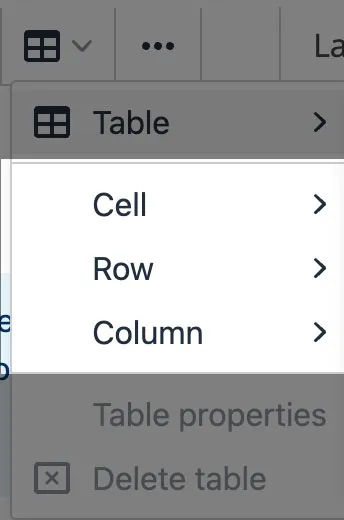
Cell - Provides options to manage individual cells, such as merging, splitting, or editing specific cell properties.
Row - Contains commands to insert new rows, delete existing ones, or modify row-specific properties.
Column - Offers tools to add or remove vertical columns and adjust their specific settings.
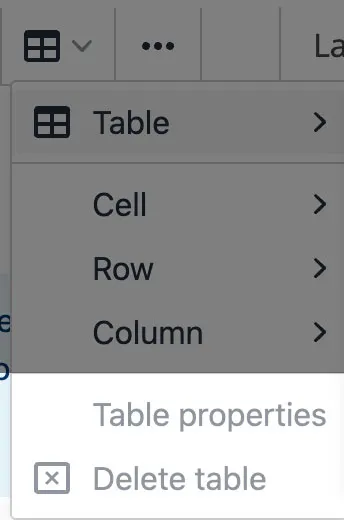
Table properties - Opens a configuration window to adjust the overall table width, height, spacing, and border styles.
Delete table - Instantly removes the currently selected table and all of its contained content from the editor.

Provides access to extended tools like tables, horizontal rules, or special characters that don’t fit in the primary view.
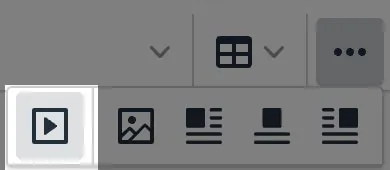
Insert/edit media - Allows for the embedding of video or audio content via direct upload or external embed codes.
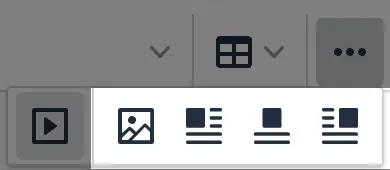
Insert/edit image - Opens a file browser or URL field to place a new image or modify the properties of an existing one.
Align image left - This button aligns the selected image to the left.
Center align content - This button centers the selected content (likely an image or text block).
Align image right - This button aligns the selected image to the right.
Further Reading
Section titled “Further Reading”- Add content to pages - Walkthrough for adding content to pages on Edlio, covering the setup of Content, Photo, File, and Staff blocks.
- Accessibility Report - Built-in feature from Edlio that automatically checks your page content for accessibility issues.